
| Purpose & Benefits |
|---|
| This function lets you export Advanced Shipping Notes (“ASNs”) to an ASCII CSV text file for onward transfer by your EDI system (e.g. Spectrum Pro or the Atlas MX+) to your customers. |
If you have not already done so, please familiarise yourself with the EDI Setup Procedures.
A form is displayed as shown below so that you can make your export selections:
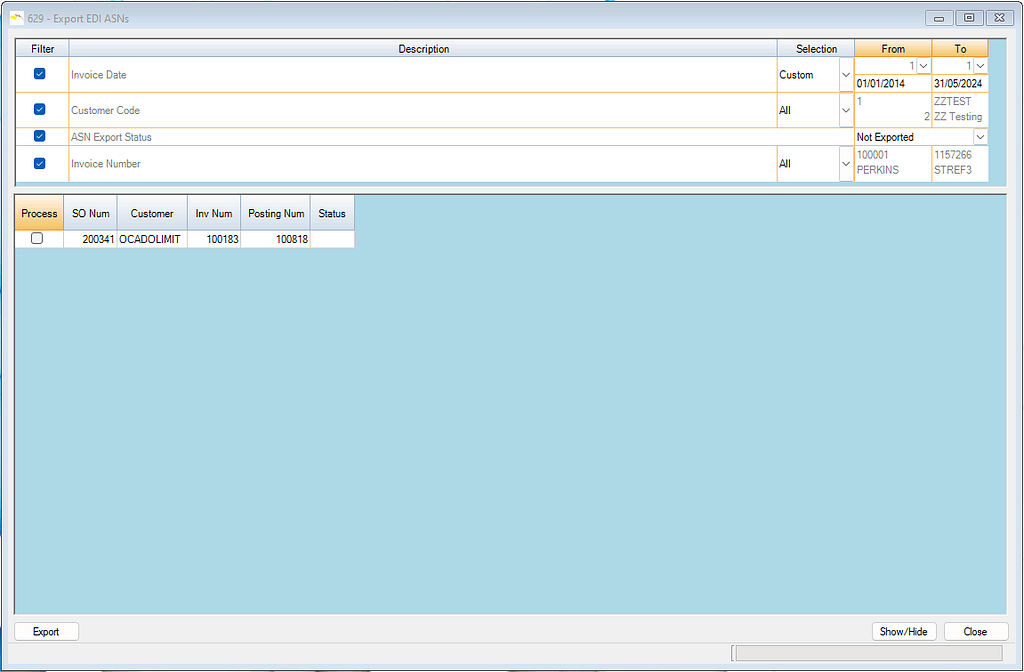
Note that this form is similar to other Order Document Processing forms. See the Document Processing form section for further details on how to use the form.
| # | Field | Default | Entry | Action/Description |
|---|---|---|---|---|
| 1 | Invoice Date | Period of Sales Ledger Date | Yes | The system defaults the date to be in the period in which the TAS Sales Ledger Date is. If you need Custom Date, e.g. for periods before 4 years past, Double-click in the date fields to get a pop-up calendar Date Picker. |
| 2 | Customer Code | All | Yes | Defaults the range to start at the first EDI customer found in TAS and to end at the last EDI customer found. Use the usual navigation/lookup (F2) methods. |
| 3 | ASN Export Status | Not Exported | Yes | Select ‘Exported’ if you need to re-export previously exported ASN’s. |
| 4 | Invoice Number | All | Yes | Defaults the range to start at the first EDI invoice number found in TAS and to end at the last EDI invoice number found, all within the Invoice Date Range selected. |
Once you have completed your selections, click the Export button. The program creates the Export ASN CSV file (overwriting any existing one) in the default folder location, with the file name “ASN_Export.txt”, both as set up for Sales Invoices in the EDI section of Maintain Central Information. As each ASN is exported the invoice is flagged as having been successfully exported.
Tip
To select all entries in the grid for processing, double-click the Process column heading.
The ASN ASCII CSV file is created in line with the TAS Data Transfer version of the Freeway Commerce specification.