
| Purpose & Benefits |
|---|
| This function is normally used only once per TASBooks Company. It allows you to import Opening Balance transactions for Suppliers from an ASCII CSV text file created by your external system using the traditional TAS layout for these in a file called BAL.DAT (there is no equivalent Sage layout).. |
The transactions are created as Journals as if you had entered them manually in TAS against the Opening Balance Control Account (typically 9999-100) using function:
| Ledger | Function | Description |
|---|---|---|
| PL | 321 | Debit Journal for Outstanding Invoice |
| 322 | Credit Journal for Outstanding Credit Notes or Receipts |
Important
You should FIRST run the Supplier Import function to update the TAS database. This reduces the possibility of “missing supplier” errors when importing Balances. The file to be imported must be output from your third party software as a Comma Separated Variable file (CSV) as ‘BAL.DAT’. The order, format and size of the fields/columns for each record are critical for the import to succeed. Full details of the current file specifications, which must be used to output your data from your third party software, are documented separately in TAS Data Transfer File Specs which you can obtain from the Infoplex website, together with a TAS Data Transfer Toolkit containing sample files. It is crucial that you and/or your third party software provider follow these specifications. The specifications also give you useful information about how the program behaves if the import file contains blank or invalid data in the various fields/columns.
When selected, the Import Opening Balances form appears, like the one shown below. At the top of the screen is a progress bar, which initially displays the number of transaction line items found in the import CSV file.
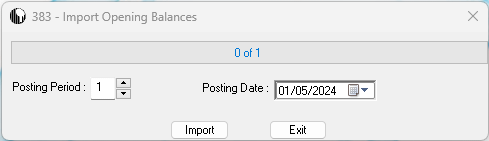
Before importing you must review/select 2 options, as described in this table:
| Option | Default | Description |
|---|---|---|
| Posting Period | Current TAS Ledger date’s period | Select period 1-12 (1-13 for 13-period Financial Calendar companies); the period must include the date specified in the next item and be in the current TAS financial year. |
| Posting Date | Current TAS Ledger date | Select the date on which the transactions are to be posted; you can use the handy drop-down date picker. The date selected must be within the period specified in the previous item. |
Import
Click this button to start the routine which imports/posts the contents of the ASCII CSV import file. The progress bar lets you see how the import is proceeding. Thousands of TAS Ledger Journal lines can be created and posted at up to 600/min, with full updates to TAS Nominal Ledger, Supplier and Dashboard records. When the import process has been completed the progress bar details the number of transactions that have been processed.
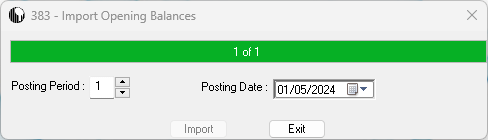
The program automatically renames the ASCII CSV import file by inserting the date and the run number for that date in that folder, i.e. in the format of:
BAL _YYYY-MM-DD_NN., e.g. BAL _2006-03-21_01.DAT.
Note that the log file is assigned the name ‘Bal_Imp’ + a Date & Number using the same method as described above for the ASCII CSV import file, for example: Bal_Imp_2024-05-22_01.LOG. Please note that if a log file of the same name exists in that folder it is overwritten, the run number being determined from the renamed import file’s numbering.
Should any errors occur during this process a warning message advises you to view the text file called BALANCES.LOG in the IMPORTS folder to check for details of the errors – see below. To troubleshoot any errors, you can use the Troubleshooting ASCII CSV File Data Errors section in the Appendices.
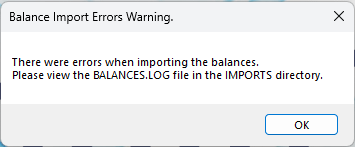
Click OK to return to the Import Opening Balances screen.
Check the Bal_Imp_YYYY-MM-DD_NN.LOG file to see the reason(s) for the error(s). A record of the run is added to the TAS System Audit Log. – you can view this using TAS function 059 (‘Print System Audit Log’), selecting the ‘Report Order Option By Unique ID’.
Exit
Click the Exit button to return to the main MultiTAS program.
To see the results of the import in TAS you can also use these TAS functions:
| Ledger | Function | Description |
|---|---|---|
| PL | 341 | Print Sales/Cash Daybooks |
| 342 | Aged Debtors List |
Common causes of failure
- one or more transactions was/were for a different TAS Ledger type – therefore skipped, in which case there is no need to do anything.
- import process failed to find a Supplier record or Nominal Account which has not previously been created in TAS, the report will identify the “missing” record.
To Avoid Posting Transactions Twice
The program reviews its previous entries in the TAS System Audit Log to check what transactions have already been posted. If you try to import transactions in a range which has already been imported a warning appears:
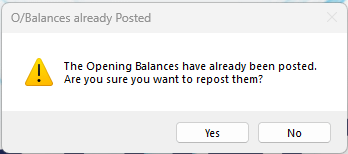
Important – If you are unsure about this, please consult your IT Manager or Supervisor before proceeding as the re-posting of these transactions could seriously invalidate your data, though you can later delete them in TAS. Always take a backup before importing Opening Balances.