
| Purpose & Benefits |
|---|
| This function lets you enter stock adjustment transactions of the 4 Type’s – Adjustment, Opening Balance, Stock Take or Inter-Warehouse Transfer (Trade feature) – so that quantities in stock are kept up to date, whether using a single stock location or multiple warehouses (Trade option required). |
There are two Methods of entering stock adjustments:
- Adjustment (traditional method) or
- Actual method, as shown top-right in the second screenshot below.
Using the Actual Method, you enter the actual quantities in stock and the program conveniently calculates the adjustment quantity for you, thus saving time. To save even more time, you can import stock adjustments from a simple CSV file created from a spreadsheet.
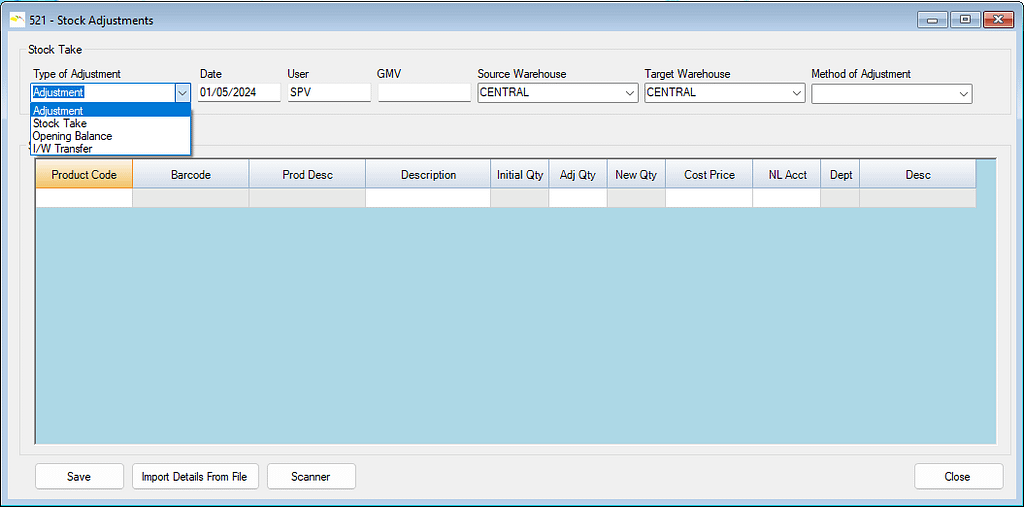
This screenshot shows the two methods available for entering stock adjustments:
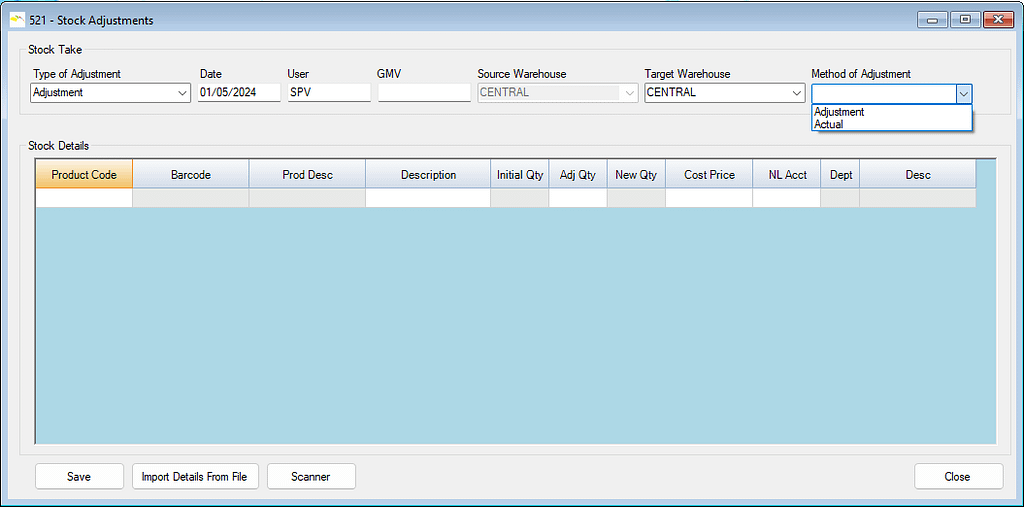
This table summarises how the various fields are handled:
| # | Field | Default | Entry | Action/Description |
|---|---|---|---|---|
| 1 | Type | Adjustment | Yes | You can select another type from the drop-down menu |
| 2 | Date | NL date | Yes | The posting date. Double-clicking in the date field gives you a handy popup calendar – see Tip and screenshot below |
| 3 | User | You/First | Yes | Accept or Enter the proposed User; you can use the normal navigation and Lookup to select another user. |
| 4 | GMV | n/a | Yes | Enter the appropriate Goods Movement Voucher number |
| 5 | Source Warehouse | n/a | Cond | This is only used for Intra-Warehouse Transfers, i.e. for the warehouse from which the goods are being transferred |
| 6 | Target Warehouse | Yes | Yes | You can select another warehouse from the drop-down menu |
| 7 | Method | Adjustment | Yes | You can select the other type, ‘ Actual‘ from the drop-down menu. |
| 8 | Product Code | n/a | No | Enter a TAS Product Code; you can use the normal navigation and Lookup to select one. |
| 9 | Prod Desc | n/a | No | Displays the TAS Product’s description/name |
| 10 | Description | Auto-text | No | Accept or Enter the proposed Description of the adjustment |
| 11 | Initial Qty | n/a | No | Displays the pre-adjustment quantity in stock for the warehouse concerned. |
| 12 | Adj Qty | Yes | Yes | If using the Adjustment method, enter the quantity of stock being adjusted, either + or -.If using the Actual method, this value is calculated by the system by taking the difference between the Initial Qty and the Actual Qty. |
| 13 | New Qty | No | Yes | If using the Actual method, enter the actual quantity in stock, either + or -.If using the Adjustment method, this value is calculated by the system by adding the Adj Qty to the Initial Qty. |
| 14 | Cost Price | TAS Cost Price | Yes | Accept or Enter the Cost Price, which defaults to the cost price of the type set up in TAS for the product. |
| 15 | NL Acct | TAS Stock Adjustment | Yes | Accept or Enter the proposed NL Account number; you can use the normal navigation and Lookup to select another Chart of Account. |
| 16 | NL Dept | TAS | No | Displays the NL Department of the CoA record |
| 17 | Desc | n/a | No | Displays the description/name of the selected CoA record |
Product Warehouse records (TRADE feature)
With the Trade option enabled, if you select one or more warehouses which have not previously held any stock of a particular product, the product record for the warehouse concerned is created automatically based on the defaults you set up, e.g. NL Department.
Finally, please bear in mind that if your TASBooks is configured to use Last Cost for Product Costing (setup in TASBooks program 012 > Stock > Costing), then processing Stock Adjustments WILL UPDATE the Last Cost of each product adjusted.
Stock Adjustment Types
Select one of the 3 adjustment Type’s of adjustment:
- Adjustment – most commonly used for standard adjustments
- Stock Take – used for recording the results of a stock-take, e.g. at Year-End
- Opening Balance – used for getting initial balances into the system.
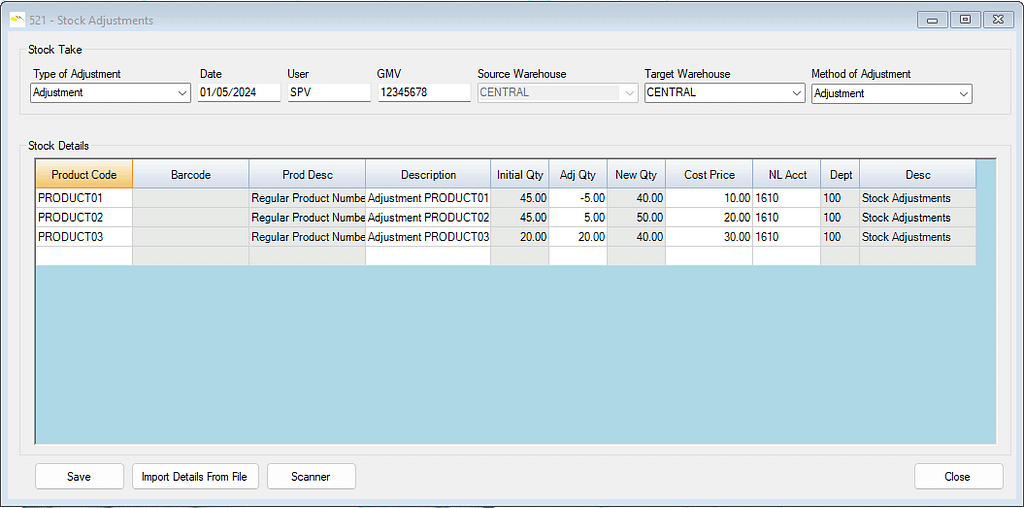
When you have entered all the data you need, click the Save button to post the stock transactions and update the TAS Nominal Ledger with the values.
Inter-Warehouse Transfers
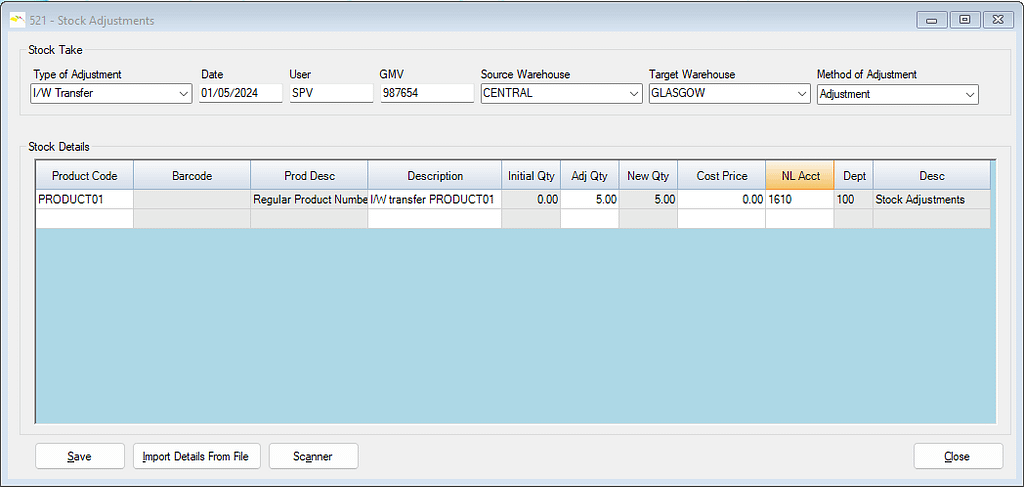
If you have the Trade option enabled, you can process an adjustment as an Inter-Warehouse Transfer. In this case, both the “Source” and “Target” warehouses must be specified:
Import from File
For high speed automation, you can use the Import From File feature by clicking on its button. The program reads a simple CSV file and, like manual entry, can use one of the 2 methods explained above:
- Adjustment – the CSV quantities represent the +/- quantities to be adjusted, or
- Actual – the CSV quantities represent the actual stock take Qty’s in Stock and the program calculates the +/- adjustments that are needed to arrive at these quantities.
A relatively straightforward 3-step procedure is involved as outlined below. Many businesses semi-automate their stock-take counting by using ruggedised PDA’s (Personal Digital Assistants) equipped with barcode scanners. The results of these stock-take counts can usually be uploaded from the PDA to a CSV file on a PC, and this eliminates Step 1 and, probably, most of Step 2 below.
Step 1 – Get a list of Product Codes from TAS. Create an Excel spreadsheet containing a list of product codes only; suggested method is:
- Go to menu item 531 (Product Lists).
- Set Filters to suit and click Process.
- In Preview screen process the Export report (top left button) to ‘Microsoft Excel 97-2000 (XLS)’ Format and Destination ‘Disk File’.
- Click OK and save to Desktop.
Step 2 – Edit Spreadsheet and save as CSV file , by following these steps:
- Open the spreadsheet in Excel and remove all columns except product code.
- Use Excel File -> Save As -> ToImport.csv (make sure File Type is set to CSV).
- For each product, depending on the Adjustment Method to be used, enter
- Adjustment – enter the adjustment Qty in column B
- Actual – enter the actual counted Qty In Stock in column B
- Save the CSV file.
Step 3 – Import the CSV file into MultiTAS Stock Stock Adjustments as follows:
- On the menu got to 521 (Stock Adjustments).
- Set Type accordingly, e.g. if you are doing a stock take, set the Type to Stock Take.
- Enter the GMV Number.
- Set the Method :
- Adjustment means that the product’s TAS Qty in Stock will be adjusted by its quantity in the CSV file;
- Actual means that the product’s TAS Qty in Stock will be set to its quantity in the CSV file, with the system calculating the +/- adjustment quantity.
- Click the Import From File button and select the CSV file prepared in step 4 of the previous section.
- The system reads the CSV file records up into the grid and you can preview what the New Qty in Stock figure will be.
- When ready, click the Save button.