
| Purpose & Benefits |
|---|
| This report shows you at-a-glance stock information for the location(s) where stock is held in MultiTAS. You must have the ‘Trade‘ option enabled to create/use more than one warehouse. |
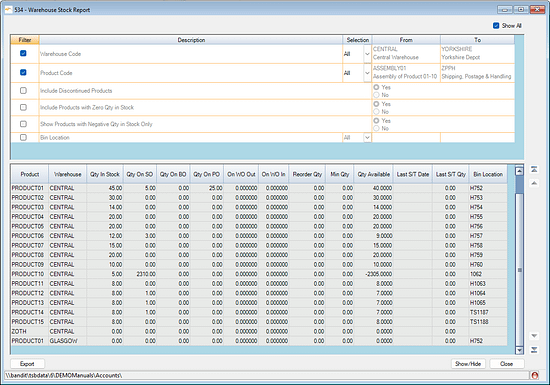
Initially the report shows stock at the default ‘CENTRAL’ location only.
Filters
Filters allow you to narrow the report parameters (choices) based on your selections. By default, no filters are applied.
You have many filter options:
| Filter | Options | Remarks/Notes |
|---|---|---|
| Warehouse Code | All, Range or Single | |
| Product Code | All, Range or Single | |
| Include Discontinued Products | Yes, No | |
| Include Zero Qty Products | Yes, No | |
| Show Negative Qty Products only | Yes, No | |
| Bin Location | All, Range or Single |
The columns displayed in the report are mainly self-explanatory, some detail:
| Column Heading | Notes/Remarks |
|---|---|
| On WO Out | This is the quantity on Works Order going out of stock due to builds – from Manufacture feature |
| On WO In | This is the quantity on Works Order coming into stock due to builds – from Manufacture feature |
| Last S/T Date | Last Stock Take date |
| Last S/T Qty | Last Stock Take quantity |
Show/Hide
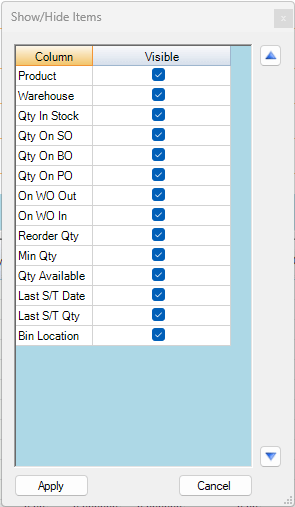
By default all columns are displayed. The user can customise which columns to show and in which order by pressing the ‘Show/Hide‘ button. This causes the ‘Show/Hide Items‘ form to be displayed, as shown below.
Export
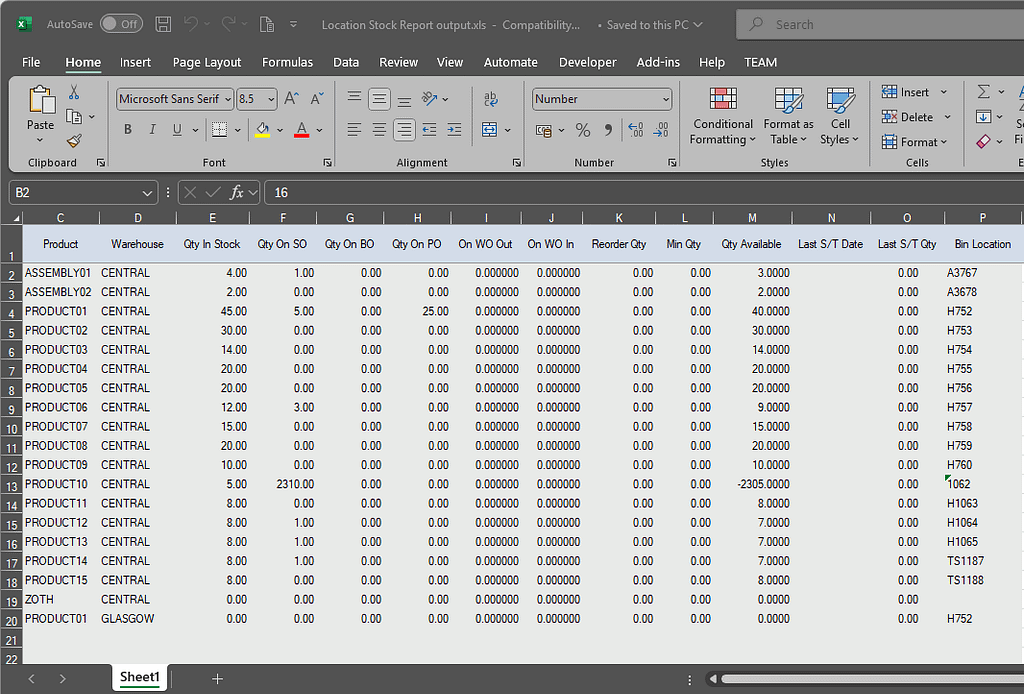
Rather than use the industry standard reporting tool most of MultTAS uses, this report exports to Excel only. Click the Export button to begin this process.
Remember feature
If you are only ever interested in some of the information you can setup your grid (using Show/Hide and ticking/unticking items, changing their order as necessary) then save your configuration by double-clicking the Red marble in the bottom right corner of the form. The marble will then turn Green to show the configuration has been saved. This is the format the information will be presented in until you clear the configuration (by double-clicking the Green marble to turn it red) or make further changes via Show/Hide.