
| Purpose & Benefits |
|---|
| This function allows you to change the TAS Product Group (i.e. Category) of one or more TAS Product/Service records in the TAS Product file that have been assigned using TAS function 511. The change can be done interactively one Product at a time or in “bulk” from a simple pre-prepared ASCII CSV file. To avoid analysis reporting problems in TAS, the change is also applied retrospectively to the chosen product’s history throughout the TAS database. |
Important
It is strongly recommended that a backup of the TAS data is taken immediately before running programs involving “heavy-duty” database changes such as this. You are asked to confirm before proceeding further. The process of importing data requires the exclusive use of the TAS data files to ensure good performance. All other users are therefore required to log out of TAS during the import process.
The main form is displayed, initially with an empty grid:
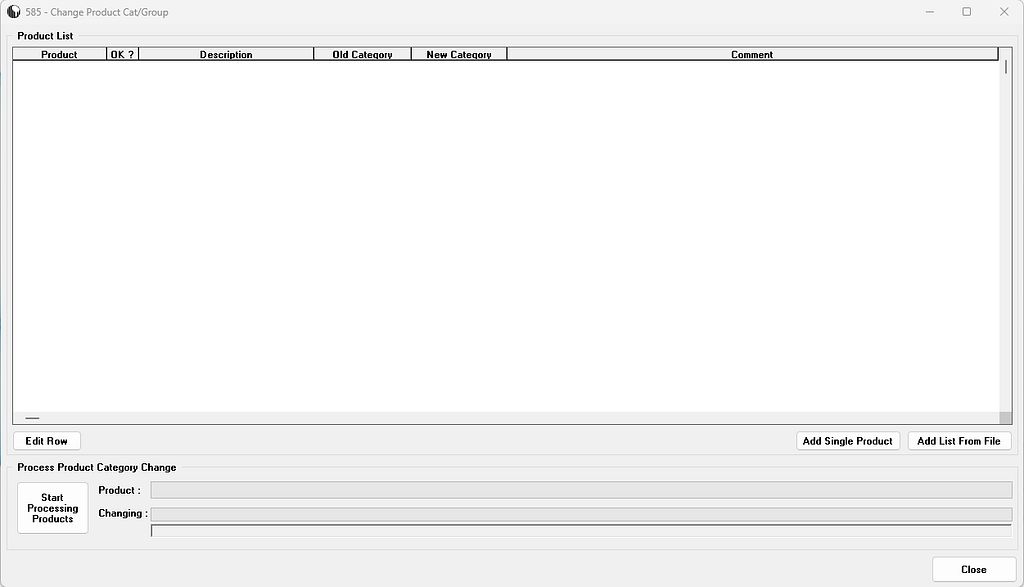
To add a single product to the grid for its Category change, click on Add Single Product.
The following dialogue appears:
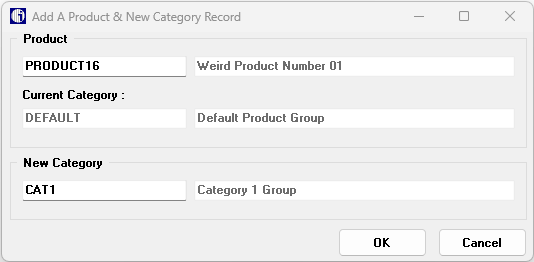
Product
Select/enter an existing TAS product using the Navigation function keys (or by entering the code). The system displays its description, its Current Category and that Category’s description.
New Category
Select/enter the New Category which must be a valid TAS Product Category. You can use the usual Navigation Function keys to search the files. The system displays the new Category’s description. Selecting the OKbutton gives you a confirmation message and clicking Yes inserts the record into the Product List grid:
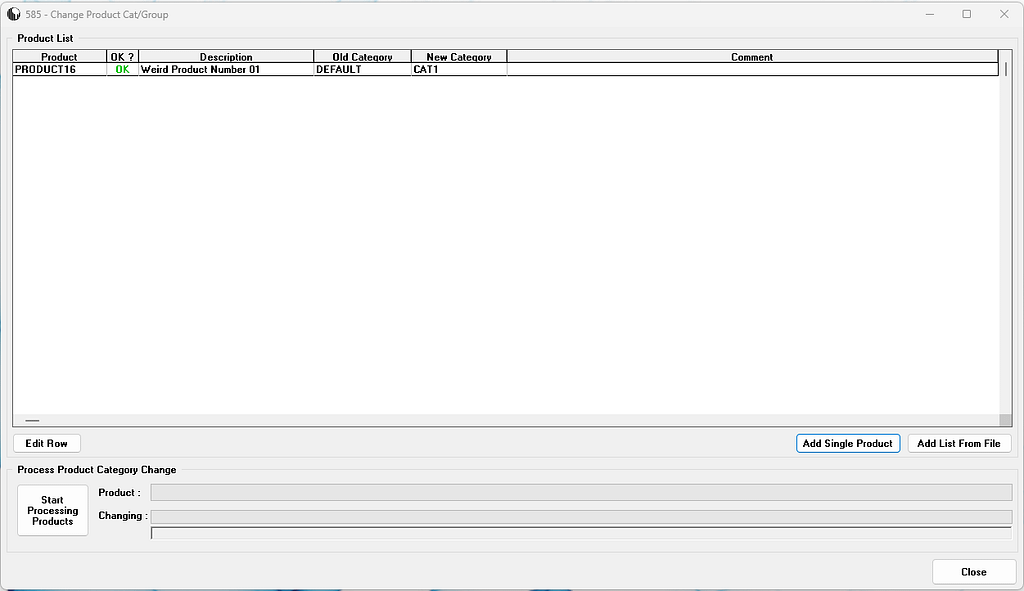
If you make an error, you can remove the offending row by pressing Ctrl+Del.
To add a list of products “in bulk” to the grid from an ASCII CSV file, click on Add List From File ; this brings up the standard CSV file selection dialogue. Highlight your selection and click the Open button to continue.
The CSV file is pre-processed into the grid with the TAS Product codes and new Categories being validated; any errors or problem areas are reported in the grid, which you can correct by highlighting the row and clicking Edit Row to edit. To troubleshoot any errors, you can use the Troubleshooting ASCII CSV File Data Errors section in the Appendices.
When satisfied with the grid’s Product contents click Start Processing Products. Due to the many file updates, the program needs to “lock” the TAS system so that that users cannot then log into TAS whilst the import is in progress. When the system is successfully locked, simply click the OK button.
The main part of the processing starts, with progress being reported on the original form – all other buttons are now disabled. Each row in the grid is processed. If there are any problems in a row it is skipped.
An ASCII text CSV Log file is created listing all changes that have taken place during this process (PCat_Chg_YY-MM-DD_NN.LOG). It records each successful change or error, including those items skipped, with: ProductCode, Old Group, New Group and Comment – “Successful” or, if an error/skip is involved, an appropriate error message.
The import file is renamed to help prevent processing twice by mistake and the LOG file is assigned a corresponding name.
When processing is complete a message to that effect is displayed in the top progress bar and the Close button becomes active. Click the Close button on the Product Category Change form and the TAS users are ‘unlocked’ following the same procedure in reverse as the locking method mentioned above.