| Purpose & Benefits |
|---|
| This function allows the user to get Project (previously Tag) Code Analysis reporting, fast and efficiently using an industry standard reporting tool. The latter allows document templates to be easily tailored to suit individual business needs including, importantly, export to CSV. Date range selections can cover any period and are not limited to TAS financial periods or years. It uses an industry standard reporting tool which enables you to use customisable report layout Templates that can easily be tailored to suit individual business needs, and which gives you many export options to other file formats (CSV, spreadsheet etc) to email or directly to another application (Excel, Word etc). |
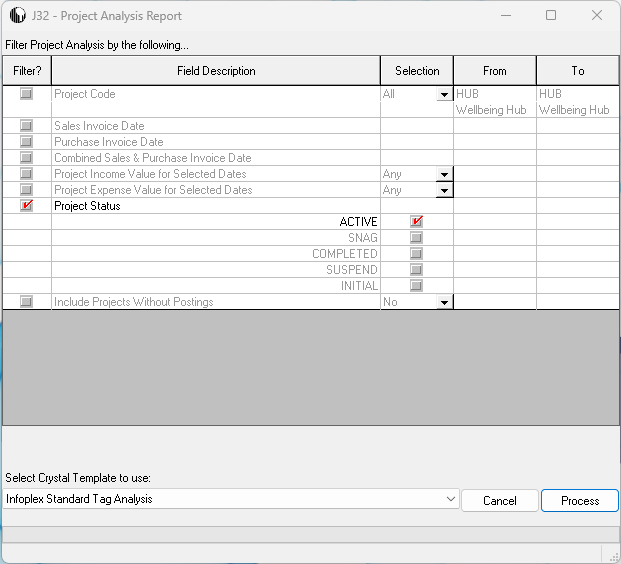
The Project Analysis filter selection form is initially set with default information. There are up to 8 main filters as shown above. The way in which you make selections in each of these sections is crucial to the nature of the analysis results, and each filter is described in the following table.
| # | Filter Field | Options | Remarks/Note |
|---|---|---|---|
| 1 | Project Code | All, Range, Single | Lets you limit the range of Projects. If you select Single or Range, complete the From and To fields as required |
| 2 | Sales Invoice Date Range – Year | Current, 1 Year Past etc and Custom | Either one of the 5 ‘standard’ years or, if you want specific dates to cover part-months or a period spanning one or more financial year-ends, select ‘Custom’. |
| 3 | Sales Invoice Date Range – Period | Range: From 1, To 12/13 | Not available if you select ‘Custom’ Year |
| 4 | Sales Invoice Date Range – Dates | Any dates | Only available if you select ‘Custom’ Year |
| 5 | Purchase Invoice Date Range – Year | Current, 1 Year Past etc and Custom | Either one of the 5 ‘standard’ years or, if you want specific dates to cover part-months or a period spanning one or more financial year-ends, select ‘Custom’. |
| 6 | Purchase Invoice Date Range – Period | Range: From 1, To 12/13 | Not available if you select ‘Custom’ Year |
| 7 | Purchase Invoice Date Range – Dates | Any dates | Only available if you select ‘Custom’ Year |
| 8 | Combined Sales & Purchase Invoice Date range – Year | Current, 1 Year Past etc and Custom | Either one of the 5 ‘standard’ years or, if you want specific dates to cover part-months or a period spanning one or more financial year-ends, select ‘Custom’. |
| 9 | Combined Sales & Purchase Invoice Date range – Period | Range: From 1, To 12/13 | Not available if you select ‘Custom’ Year |
| 10 | Combined Sales & Purchase Invoice Date range – Dates | Any dates | Only available if you select ‘Custom’ Year |
| 11 | Income Value for Selected Dates | Any, Non-Zero, Zero | Allows you to include/exclude Projects/Tags based on the total income value. |
| 12 | Expense Value for Selected Dates | Any, Non-Zero, Zero | Allows you to include/exclude Projects/Tags based on the total income value. |
| 13 | Status | Active, Snag, Completed, Suspend, Initial | |
| 14 | Include Projects Without Postings | Yes, No | Lets you see which Projects have not yet had transactions posted to them. |
You can select which Report Template to use from the drop-down menu; remember you can add one or more extra templates using the Document Templates function in the Document Templates menu. Having completed your selections, simply click the Process button to run the report.
If No Projects or Project Transactions exist…
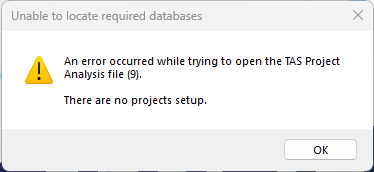
You’ll get one of two separate errors. If no Projects have been setup in TASBooks then you’ll see this error:
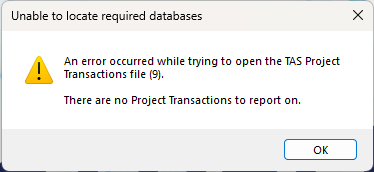
If Projects have been setup in TASBooks BUT no transactions have been entered against them, then you’ll see this error: