
| Purpose & Benefits |
|---|
| This program allows you to receive the goods associated with a Purchase Order into stock. |
When you receive items you ordered from a supplier, you can record this to keep track of your stock and costs as follows:
Notice
To receive goods and the invoice separately, this needs to be setup in TASBooks first (otherwise goods are received at the same time the invoice is entered).
Open TASBooks > Central > General Company Information > Stock > Stock Control and tick Always use GMVs to book in stock and enter purchase invoice separately
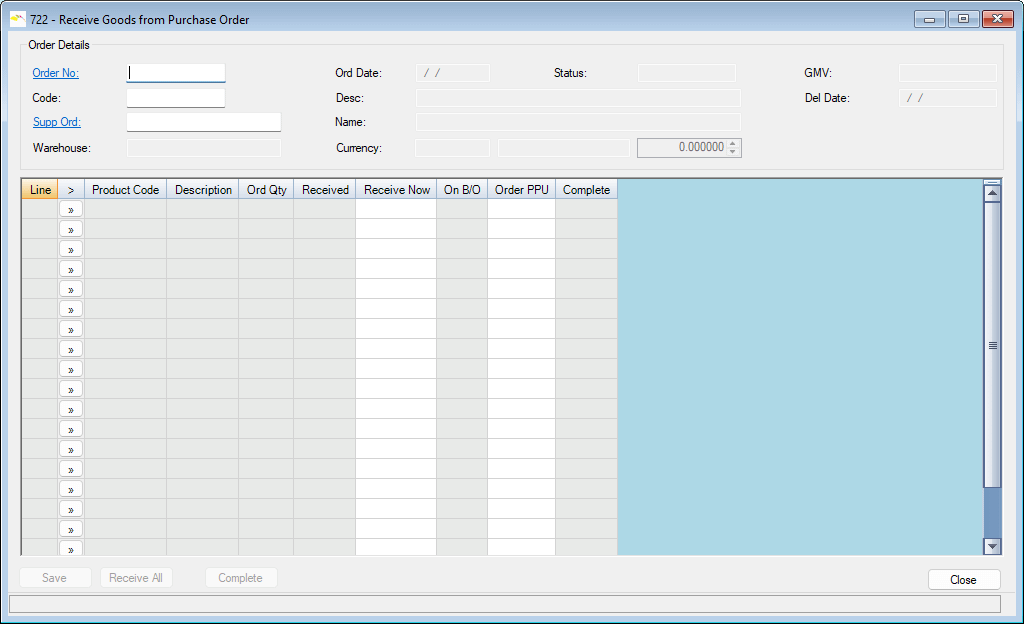
- Enter the purchase order number or choose it from a F2 lookup.
- The supplier code will fill in automatically from the Purchase Order
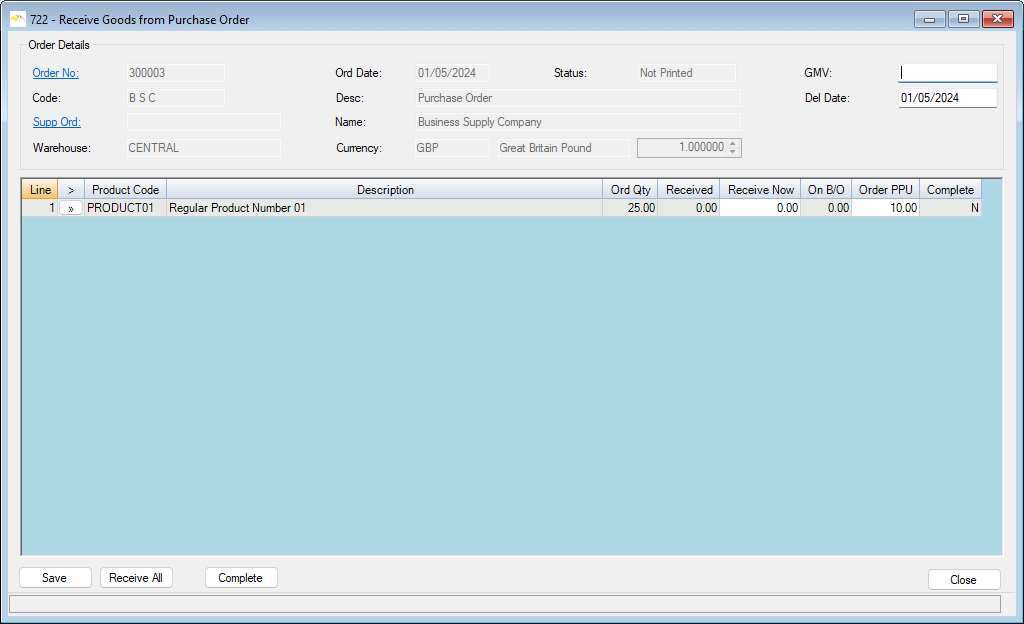
- Put the GMV reference and delivery date.
- Fill in details like product code, units ordered, units received, units received now, and units on back order.
- You can enter a different price per unit if needed.
- Update the “Rec Now” column for each item.
- Choose one of three options to save the details of goods received:
- Complete: If you got everything or won’t receive the rest.
- Save: To keep the received details.
- Receive All: To mark all items as received.
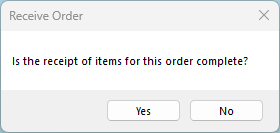
When you click Save you are asked if the order receipt is complete (or not).
This decides whether the order will be marked as complete.
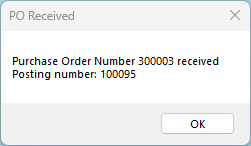
Click Yes and MultiTAS will finalise the movements, confirm processing was completed and display the posting number used.
You can check the updated stock levels in the Product record (option 511) afterwards if desired.
Remember, your supplier’s account won’t be updated until you get the supplier’s invoice.