
| Purpose & Benefits |
|---|
| This function lets you automate the allocation of Sales Ledger payments/credits against Sales Ledger invoices/debits as if you had done it manually using the TAS function 251. It differs from the previous section by importing the allocations from an ASCII CSV file. This is particularly useful if, for example, you have an eCommerce system from which you import to TAS sales invoice journals plus sales receipt journals (using the Transactions Import function), and you need precise allocations in TAS. An example of this requirement would be regular monthly invoices/payments. |
Important
The file containing the allocations for import must be output from your third party software as a Comma Separated Variable file (CSV), e.g. for a default single user PC it could be: C:\TASData\Company001\Accounts\Allocations.csv. The order, format and size of the fields/columns for each record are critical for the import to succeed. Full details of the current file specifications, which must be used to output your data from your third party software, are documented separately in TAS Data Transfer File Specs which you can obtain from the Infoplex website, together with a TAS Data Transfer Toolkit containing sample files. It is crucial that you and/or your third party software provider follow these specifications. The specifications also give you useful information about how the program behaves if the import file contains blank or invalid data in the various fields/columns. This software has comprehensive checks to ensure that an import will succeed only if all the critical data is correct.
Initially you are presented with an empty Allocation List :
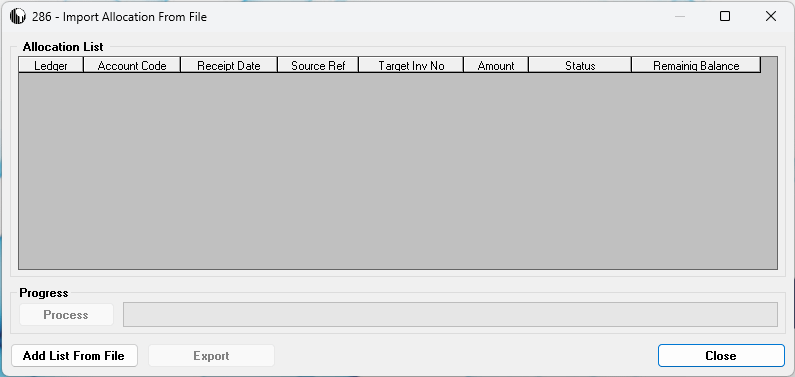
Click the Add List From File button to continue.
You get a Select Allocation File browse dialogue which defaults to the folder in which your TAS data is stored:
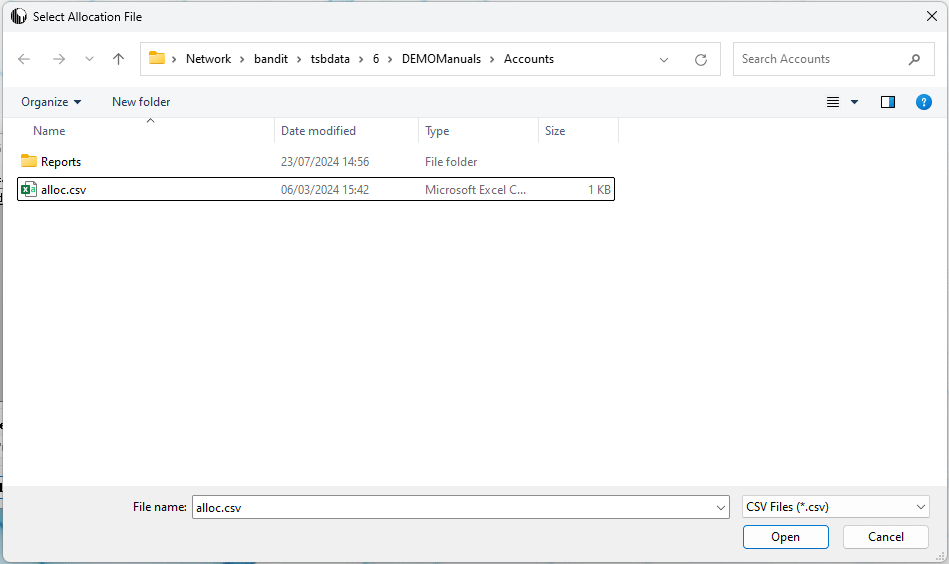
Use the Select Allocation File browse dialogue to find your ASCII CSV Allocation file. Select it then click the Open button. The contents of the file are loaded into the Allocation List, validated and matched against your TAS database; any allocations with obvious errors are flagged up in red text:
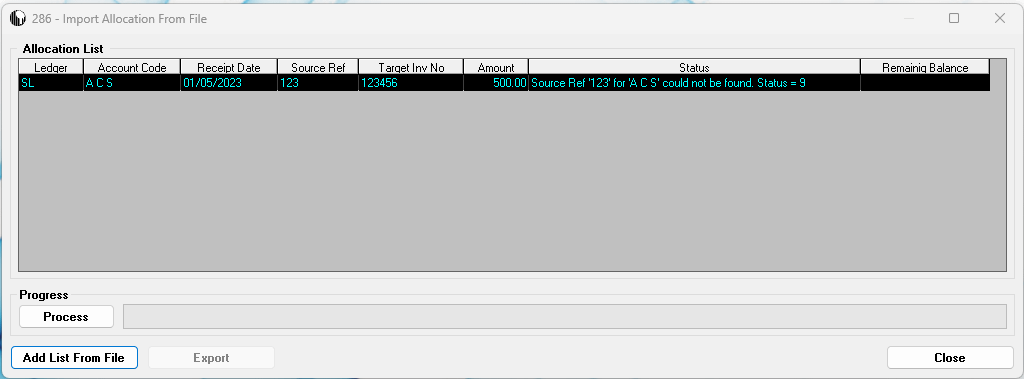
If you have such errors, you may wish to close the form and investigate them first. To troubleshoot any errors, you can use the Troubleshooting ASCII CSV File Data Errors section in the Appendices. Otherwise click the Process button to continue.
The progress bar gives you an indication of how far processing has got, whilst the Status and Remain Balance columns confirm how much was actually allocated and any remaining balance on the target invoice/debit journal respectively:
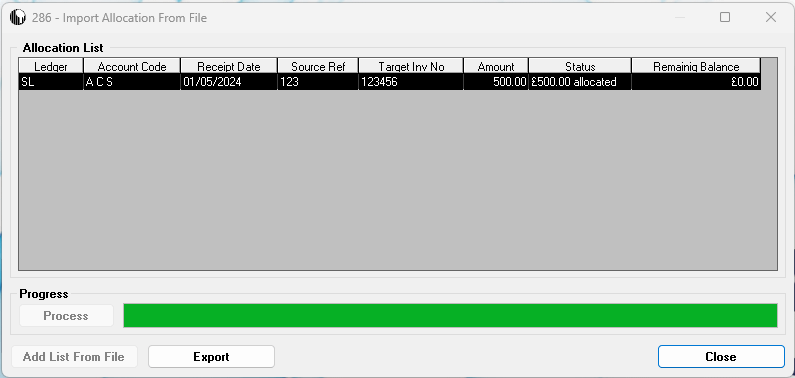
If you want to export the results to an HTML file which you can view in your web browser, click the Export button. The system confirms for you that the export has taken place and displays the filename:
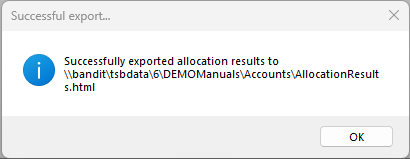
Please note that if the HMTL file “AllocationResults.html” already exists it is overwritten.
To exit to the main menu click the Close button.