
| Purpose & Benefits |
|---|
| TAS allows you to maintain 4 fixed prices, including a Retail inc VAT price, and 3 quantity break prices per item for sale. All these prices are in your base currency. For many users this is more than sufficient. However, there are others who need: – The ability to have virtually unlimited price lists – Customer specific price lists – Special offer prices within price lists, with start and expiry dates – Foreign currency price lists. This function lets you maintain such Price Lists for use in Sales Order Processing. |
Initially your Price Lists are displayed in a grid for easy access and where you can rapidly change important information in some of the columns:
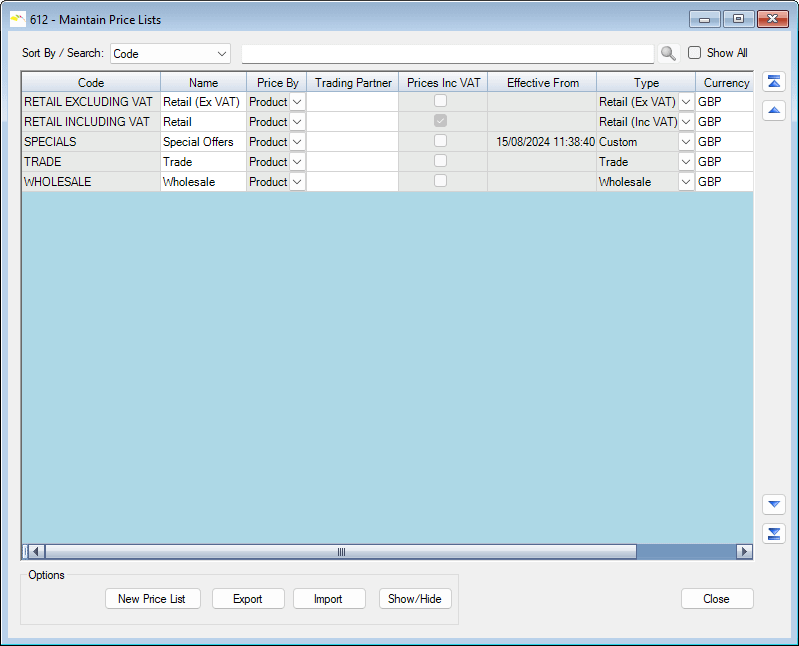
You can create as many price lists as you want, in addition to the standard 4 in TAS. Price Lists can be general or customer specific, and you can even include special offers with a start and end date. Price Lists can also be in foreign currencies.
Customers can be assigned a default Price List and Currency by drilling down on the Customer record in Maintain Customers then selecting the appropriate Price List and Currency in the General group.
Double-click the Code of a Price List that you wish to amend or click New to create a new Price List.
Assign a code and a name to the Price List (you can change these at any time) and select which currency to use – TAS has over 150 currencies for which you can set exchange rates. You can give the list a Trading Partner (Customer) code. Then simply add the products and prices that you want:
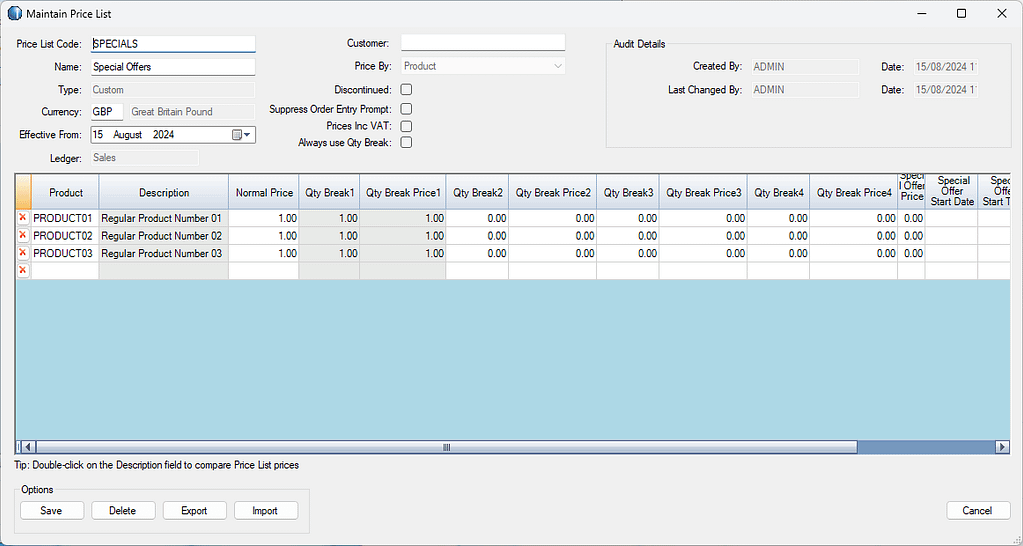
Price Lists can be priced either per Product or per Product Group, by selecting the applicable option in the ‘Price By’ dropdown box.
Clicking the Export button conveniently exports the whole Price List directly to Excel.
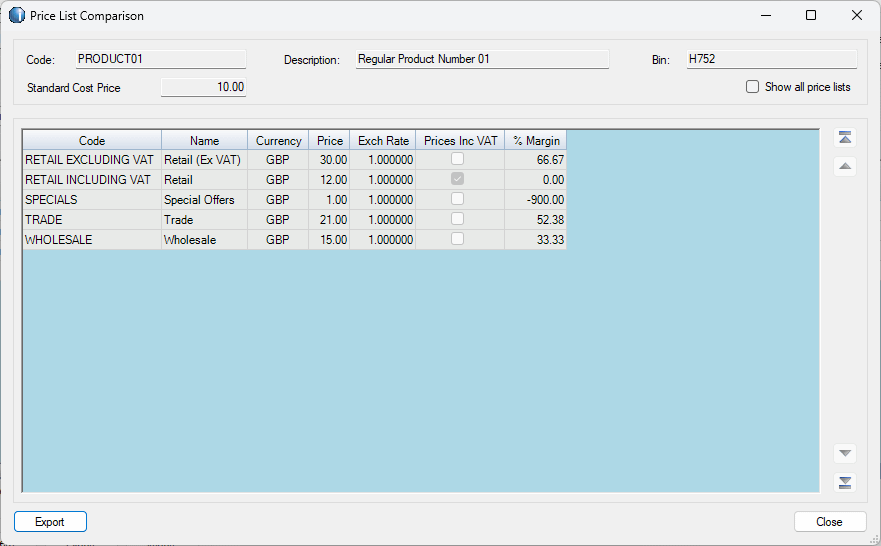
You can compare the Price List prices of a Product by drilling down on the Description field – the Price List Comparison form should open as follows:
Price List Import
Price List updates can be done interactively one Product (or Product Group) at a time or in “bulk” from a simple pre-prepared CSV file. This means large volumes of Price Lists records can be handled very rapidly.
TAS default Price Lists (Price List codes RETAIL EXCLUDING VAT, RETAIL INCLUDING VAT, TRADE, WHOLESALE) are calculated based on prices in TASBooks and thus cannot be updated in this manner.
Double-click the Code of a Price List that you wish to amend (or click New to create a new Price List).
Next, click the Import button – the Import Price List form opens.
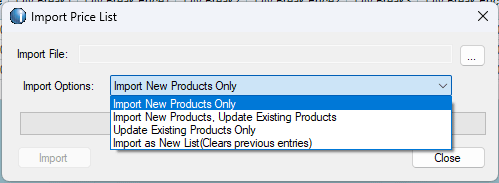
Click the […] button to locate the CSV file that you have already prepared. Next, choose the most suitable selection from the Import Options dropdown. There are 4 selections available:
- Import New Products Only – which will only add Products not already found on the existing Price List
- Import New Products, Update Existing Products – which will both add Products not already found and update any existing Product Price List prices.
- Update Existing Products – will update Existing Product Price List prices only, skipping any new Products
- Import as New List – which will clear all existing Product prices on the Price List then import the all records contained in the CSV file
Once you have selected the most appropriate option, click Import – an ASCII text log file is created in the same folder as the import file. The log contains details of each CSV file line processed and any errors encountered during the processing run. You should check this file after every run.
For processing to continue successfully, the Import ASCII CSV file must conform to the Price List Import specification. The file is read sequentially and its records are checked against the TAS Product file and the existing Price Lists files (if applicable).
The Progress bar lets you see the progress of the import. The processing of hundreds of records is completed in seconds. Once the import run has completed a message appears advising of success or failure. You are informed of the renaming of the import file.
If there are any errors during the import you are informed with a message. You are also offered the opportunity to view the LOG file immediately.
To troubleshoot any errors, you can use the Troubleshooting ASCII CSV File Data Errors section in the Appendices.