
| Purpose & Benefits |
|---|
| This function lets you select and print/post Invoices and Credit Notes for orders created in the Sales Order Processing system. You can select a number of non-sequential orders to process, view up to 20 extra columns of information whilst making your selections and have up to 400 standard fields of information available to customise your documents, as well as formula fields for special calculations. |
The program displays all outstanding Orders from your TASBooks data and displays them in the grid.
There is also an option at the top to create Acknowledgements from Invoices (instead of orders) if desired.
See the Document Processing page for details of how to use this function.
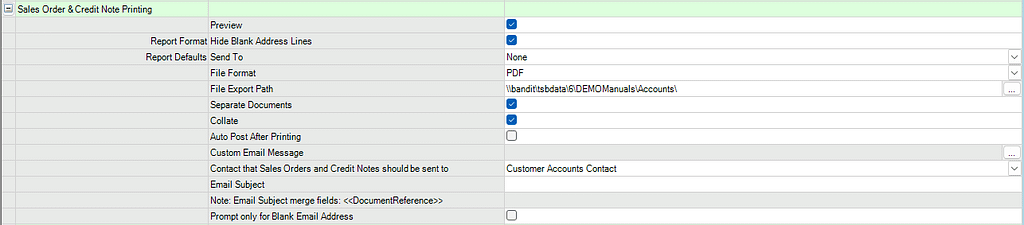
It has it’s own set of settings in program 0.1.1 which allow you to set the default values of many of the Report Options (for example – always set the default Send To value to PDF, saving a copy of the document produced to a specific folder on your server computer rather than the default TASBooks data folder).
Print/Post Process
Important
If you have the ‘Auto Post After Printing‘ option enabled then the following instructions are redundant
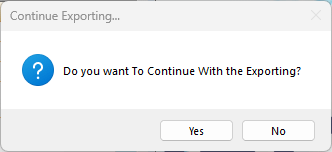
If the Preview is acceptable, close the form by clicking the red [X] in the top right corner to continue. You are prompted to confirm this is the case – do so by clicking Yes.
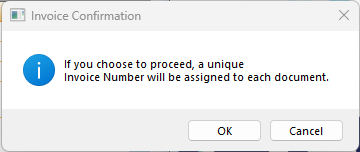
Next, you are advised that by proceeding, a unique Invoice Number will be assigned to each order to be printed and posted. You confirm this understanding by clicking OK.
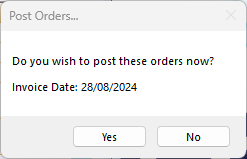
Finally, you are asked whether you wish to post the order(s) to TASBooks. The Invoice Date chosen when setting your Document Properties is displayed as a reminder. Click Yes to post the orders as invoices or click No to leave the orders as sales (or credit) orders.
Unposted Invoices
If you decide not to post sales invoices/credit notes after printing, they will appear in the TASBooks Unposted Invoices Manager and may get posted there in error. Please make sure that they do not get posted from there in error.
One way to prevent this is to disable Users access to TASBooks program 625.