
| Purpose & Benefits |
|---|
| This function lets you create and maintain multiple warehouses and other locations where stock is held, such as depots, vans or even quarantine and returned goods holding areas. You must have the ‘ Trade‘ option enabled to create/use more than one warehouse. |
Initially there is only one warehouse: “CENTRAL” (you can change the code to suit, e.g. to “MAIN” by drilling down on CENTRAL, updating the code and clicking Save.). All warehouses are displayed in a grid for rapid editing:
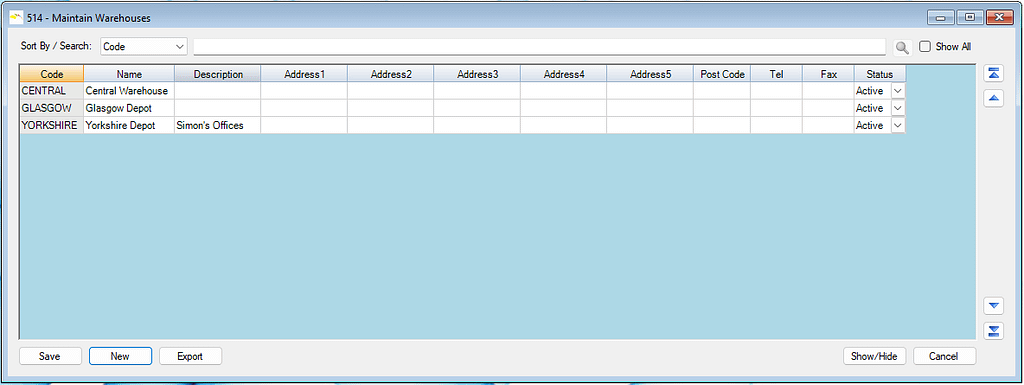
Click the Show/Hide button if you want to select or reorder the columns. To view/edit a record in detail, select the row and single-click the Product Code. To create a new Warehouse click the New button, which gives you a detail warehouse record form to complete.
The drill-down (or New) gives you a detailed record to edit/create:
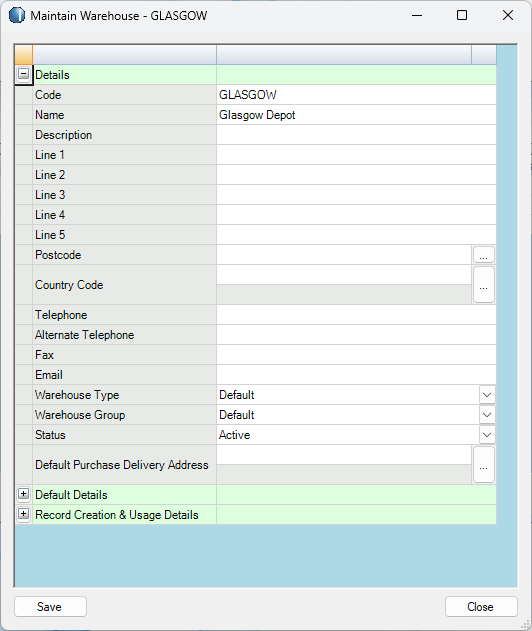
Process the Warehouse Details fields as follows:
| # | Field | Default | Entry | Action/Description |
|---|---|---|---|---|
| 1 | Warehouse Code | n/a | Yes | Enter/change the code used to identify the stock location, warehouse or depot. |
| 2 | Warehouse Name | n/a | Yes | Enter/change the name of the stock location, warehouse or depot. |
| 3 | Warehouse Description | n/a | Yes | Enter/change any description you want for this warehouse. |
| 4 | Address Lines 1 to 5 | n/a | Yes | Enter/change the address lines as required |
| 5 | Post Code | n/a | Yes | Enter/change the Post Code, if any. |
| 6 | Country Code | n/a | Yes | Enter/change the Country Code, if any, or browse to lookup. |
| 7 | Telephone/Fax/Email | n/a | Yes | Enter/change these fields as required |
| 8 | Warehouse Type | Default | For future use | |
| 9 | Warehouse Group | Default | For future use | |
| 10 | Status | Active | Yes | Use the drop-down menu to select whether this warehouse is Active or Discontinued |
| 11 | Default Purchase Delivery Address | n/a | Yes | Select the default Purchase Delivery Address which you want for this warehouse by clicking on the browse button to lookup. By using this address when POs are created in TAS as the address to be used for goods to be delivered to, the assignment of PO Receipts to the correct warehouse is massively quicker. |
Expand other sections of this form by clicking the section’s ” +” button then fill in details as needed.
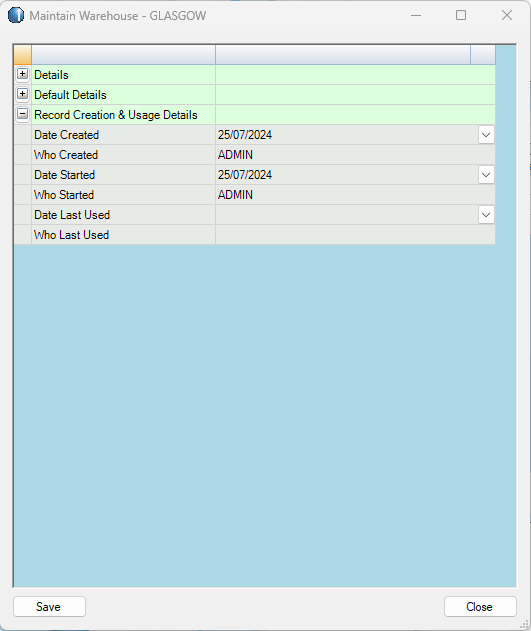
The remaining sections are as illustrated below. The Record Creation & Usage Details are for information only.
Process the Default Details fields as follows:
| # | Field | Default | Entry | Action/Description |
|---|---|---|---|---|
| 1 | HENX | Home | Yes | Use the drop-down menu to select whether this warehouse is Home, EC, Non-EC or Exempt for VAT purposes. |
| 2 | Used for Sales | On | Yes | Click the checkbox to set the Warehouse to be used for sales (or uncheck if not required) |
| 3 | Default Currency | Base | Yes | Enter/change the default Currency Code for Sales from this warehouse. |
| 4 | Main Contact | n/a | Yes | Enter/change the name of the main contact |
| 5 | Default Dept for NL Postings | 100 | Yes | If you are using TAS Departments to identify Sales, Stock and Cost of Sales values in the TAS Nominal Ledger, change the default NL Department Code to use for these NL Accounts with products at this warehouse. |
If you have made any changes, or are creating a new record, click the Save button to save them.