
| Purpose & Benefits |
|---|
| This function allows you to create and update TAS Products automatically by importing data from an ASCII CSV file, as well as utilising the TAS Free Format Text Blocks to allow extended Product descriptions of up to 540 characters. By using Product List template StdSTPR3.rpt in Product Lists (531) you can export your product details to a PROD.DAT file, manipulate them in that file using Notepad or Excel, then reimport them using this function. |
Important
The file containing the records for import must be output from your third party software or spreadsheet as a CSV file and stored in an accessible folder as ‘PROD.DAT‘, e.g. it could be: C:\TASData\Company001\Accounts\PROD.DAT. The order, format and size of the fields/columns for each record are critical for the import to succeed.
Full details of the current file specifications, which must be used to output your data from your third party software, are documented separately in TAS Data Transfer File Specs which you can obtain from this website, together with a TAS Data Transfer Toolkit containing sample files. It is crucial that you and/or your third party software provider follow these specifications. The specifications also give you useful information about how the program behaves if the import file contains blank or invalid data in the various fields/columns.
The ASCII CSV file PROD.DAT is pre-processed, analysed and the number of individual product records is displayed in the Processing progress bar of the main import form:
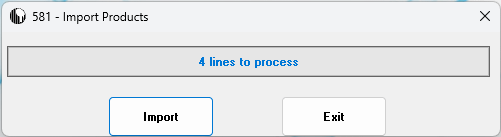
When you click the Import button, an ASCII text log file is created in the same folder as the import file. The log contains details of each product processed and any errors encountered during the processing run. You should check this file after every run.
For processing to continue successfully, the PROD.DAT import ASCII CSV file must conform to the specification. PROD.DAT must be located in the directory/folder set up in Central > General Information > Maintain Central Information , otherwise you will get a “file not found” error message. PROD.DAT is read sequentially and its records are checked against the TAS Product and Free Format Text Block files. If a product exists the TAS records are updated with the ASCII details. If a product does not exist then a new TAS Product record is created, plus related Free Format Text Block record if appropriate.
Checks include seeing if the Nominal Account codes/numbers and departments exist within the TAS Chart of Accounts file. If not the Product record is assigned the default Nominal codes and departments from the TAS Central Setup Information file. In this case an entry is made to the Log file. Similar validation rules apply to the VAT Rate value (against the TAS VAT Rates file), to the Product Group code values (against the TAS Product Groups/Categories file) and to creating a new Product record.
The Progress bar lets you to see the progress of the import. The processing of hundreds of records is completed in seconds. Once the import run has completed a message appears in the progress bar. Click Exit to close the program.
You are informed of the renaming of the import file:
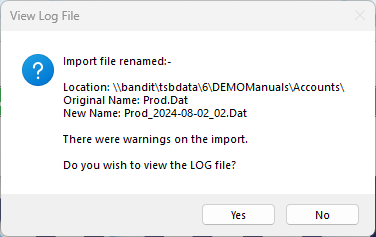
If there are any errors during the import you are informed with a message. You are also offered the opportunity to view the LOG file immediately. If you select Yes to view the Log file you will be presented with a report similar to the one shown in the View Text Files section above.
To troubleshoot any errors, you can use the Troubleshooting ASCII CSV File Data Errors section in the Appendices.
The import file is renamed to help prevent processing twice by mistake and the Log file is assigned a corresponding name.
Click Exit to return to the main program.