
| Purpose & Benefits |
|---|
| This function lets you insert/update unique discount rates for each customer/product combination as in TAS function 515. The change can be done interactively one Discount at a time or in “bulk” from a simple pre-prepared CSV file. As 515 is slow to use, this means large volumes of discounts can be handled very rapidly. |
The main form is displayed, initially with an empty grid:
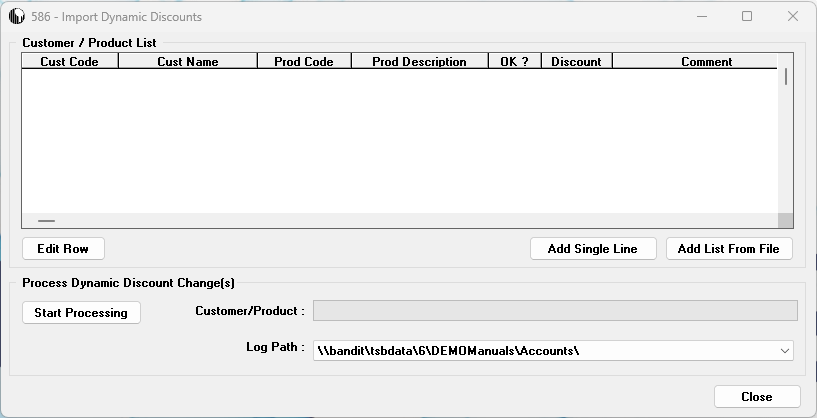
You add your requirements to the grid by clicking Add Single Line or Add List From File :
Add Single Line
To add a single dynamic discount to the grid, click on Add Single Line causing the following form to appear:
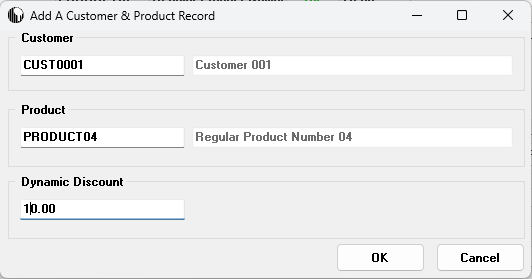
Select:-
- an existing TAS customer and
- an existing TAS product and
- enter the New Dynamic discount percentage which must be valid (0.01 – 100.00 %).
Add List From File
To add a list of dynamic discounts “in bulk” to the grid from an ASCII CSV file, click Add List From File, bringing up the standard CSV file selection dialogue with the starting folder being the current TAS data directory. Select the CSV file, click Open and it is pre-processed into the grid, any errors or problem areas, such as invalid TAS Customer codes or TAS Product Codes, are reported in the grid.
You can correct any errors by highlighting the row and clicking Edit Row to edit and correct.
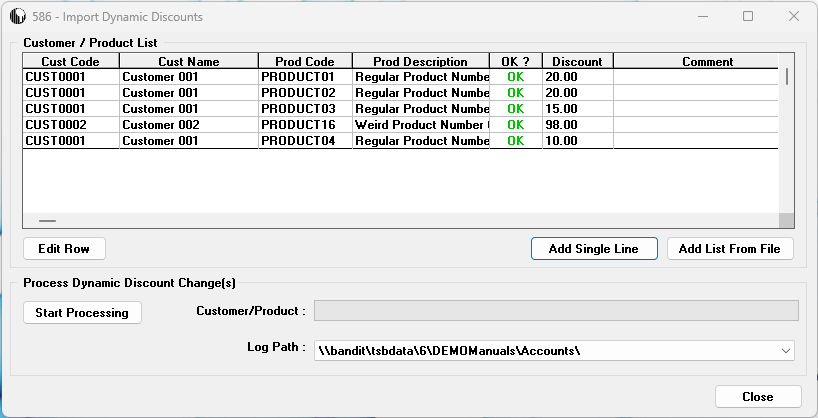
When satisfied with the grid’s contents click Start Processing to continue. If there are lines shown on the grid that will not (for some reason) be able to be processed, you receive a warning.
This gives you the opportunity to click No to cancel processing, and amend it, or click Yes to proceed to process the dynamic discounts that can be processed.
During the import, you can see progress being reported on the original form via the progress bar. If there is an existing dynamic discount for the customer/product, the discount is updated , otherwise a new discount record is inserted.
An ASCII text CSV Log file is created listing all changes that have taken place during this process (Dyn_Disc_Import_YY-MM-DD_NN.LOG). It records each successful change or error, including those items skipped, with: Customer Code, Product Code, Dynamic Discount and Note – “Successful” or, if an error/skip is involved, an appropriate error message.
The import file is renamed to help prevent processing twice by mistake and the LOG file is assigned a corresponding name.
When processing is complete you will see a message to that effect displayed in the progress bar and the Close button becomes active. Click the Close button on the form to return to the Main Menu form.